This article will provide you with handy instructions on how you can add accounts as administrators/managers for your YouTube channel.
1. On YouTube, sign in as the owner of the Brand Account.
2. In the top right, click the account icon and select the channel you want to manage.
NOTE: If you only have one channel, simply click on "My Channel".
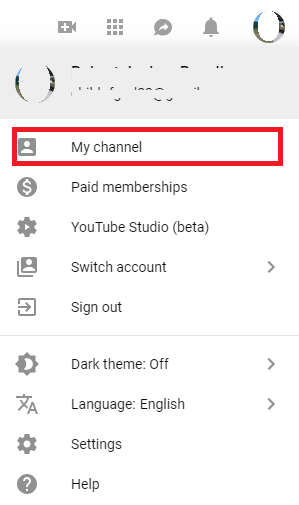
3. Go to the channel's account settings by clicking "Settings" on the left-hand dashboard.
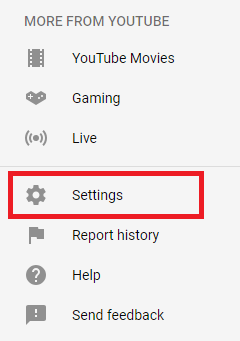
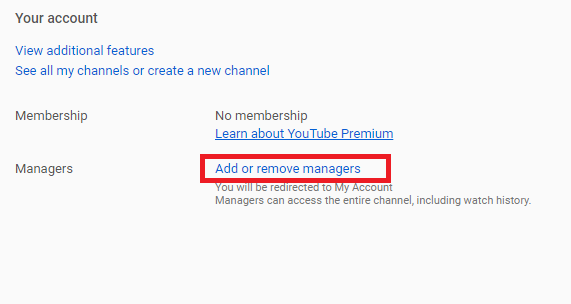
4. Click "Add or remove managers". You'll be redirected to the "Brand Account details" page.
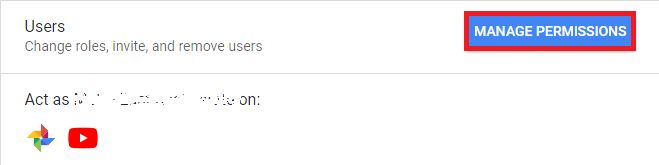
5. Click "Manage Permissions". You'll see a list of people who can manage the account.
6. To invite new people, choose "Invite new users".
7. Enter their email addresses.
8. Below their names, choose their role:
- Owners can take the most actions, and they control who manages the account. An account must have one primary owner. Note: Owners can take full actions on the channel, including deleting the channel, removing other owners, and designating others as either owners or managers.
- Managers can use Google services that support Brand Accounts, like sharing photos on Google Photos or posting videos on YouTube.
9. Select "Invite" and then "Done".
Comments
0 comments
Please sign in to leave a comment.