- Login to your website using your account and it must have administrator access.
- After Logging in, Go to the page you wish to edit. When the page loads, it must show the wp-admin bar above and it will contain ‘Enable Visual Builder’ button to enable the Divi Builder so you can start editing.

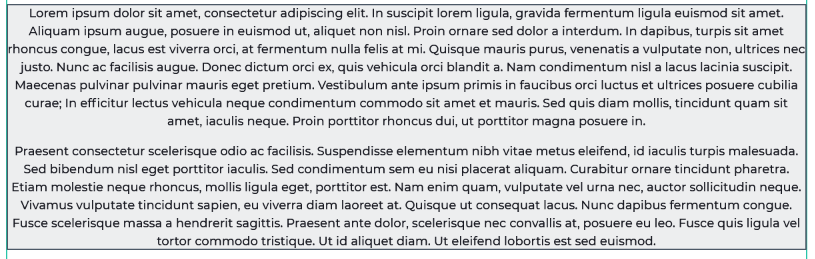
- After the Divi Builder is enabled, Go to the section you wish to edit and hover over it. It should have a gray outline like below.
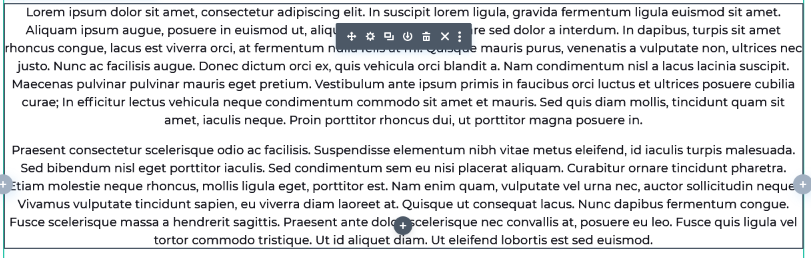
- Then click the section, a group of icons will show. Click the gear icon.
- It will then show the settings of that module.
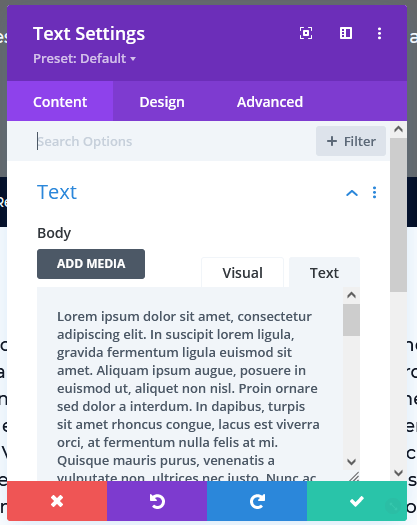
The tab that must be selected is Content > Text. This is where you edit the text that will be shown. After editing, click the check icon.
- Look at the bottom of the screen there should be an icon with three dots, click this to show the save button that will appear on the bottom right of the screen.


- Click save then wait for it to finish loading. Then go back to the admin bar at the top then click ‘Exit Visual Builder’ to see the updated page.

Comments
0 comments
Please sign in to leave a comment.