This lesson will cover the Preferences section - the Global preferences, Area-specific preferences, Featured IDs, and MLS settings.

Global Preferences - Search
To set up some of the default behaviors for your IDX search forms, select the Preferences-> Global Preferences, and the Search tab.
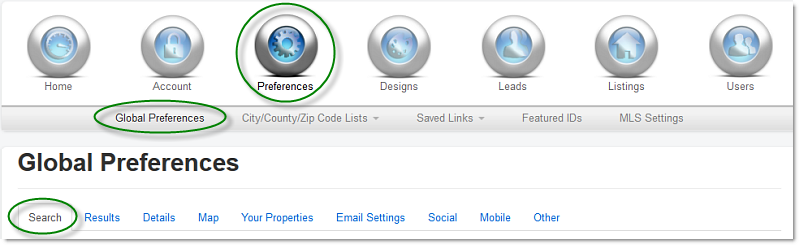
Your options here include:
Customization - Default is "Show Additional Filter Options".
- This option will include the checkboxes in your search pages for Has Image, Has Virtual Tour, and Has Open House.
- If you wish to never have these as options on any of your Search Pages, deselect "Show Media Refinement".
- Note: You can also hide any of these options individually and on a page by page basis by using the Page Preferences (Designs --> Pages --> 'Edit' in the Preferences column for any search page).
Searchable Location Types - Default is ALL selected.
- This option will let you permanently hide any of the lists for City, County, or Postal Code.
- By deselecting any of these boxes, your customers will not ever be able to search by those options.
Loading Screen - Default is ALL selected.
- After visitors run a search, results can sometimes take a moment to load. You can choose to display the loading screen: an icon along with the message "Loading..." while results pages load.
- Also you can include your logo on this loading screen. Upload your logo under Preferences --> Global Preferences --> Other.
New Search Link - Default is "IDX System".
- Results and details pages include a "New Search" link allowing the visitor to get back to the search form they just used and start over. Most accounts should leave "IDX System" selected. Advanced developers who have created a custom search form and integrated it with their IDX account using the IDX Broker API can select Custom and paste in the URL where their custom search form is hosted.
Default Search Page - Default is "Advanced Search".
- This is the page to which the base IDX Broker subdomain will point.
- If you are using the standard domain, your website.idxbroker.com will point to the chosen search page.
Setup
- Append state to city list - Default is No.
- Select Yes to add the State name to your City list
- Append state to county list - Default is No.
- Select Yes to add the State name to your County list
- Search Page Links - Default is Advanced Search; Listing ID; Address; Map Search
- This is where you can create the row of links that appears at the top of your IDX search pages for quick navigation between your different Search pages.
- You can add in any search pages available in your account.
- Click on the Add All Search Pages button to add in all your present Search Page options.
- You can refine or re-order these pages by clicking the "X" to remove an option and dragging the others into order.
Default Minimum Price / Default Maximum Price - Default is Min Price: $200,000 ; Max Price: $800,000.
- In these two boxes you can set the global default minimum and maximum price that will appear on your Search Pages.
- Override these defaults on a page level by using the Page Preferences (Designs --> Pages --> 'Edit' in the Preferences column for any page and selecting the 'Search Setup tab').
In IDX Broker Platinum, you can also set the default prices for individual property types.
Once you've set your preferences as desired, select Save Changes.
Watch this video for a walkthrough of the Search Page settings in your Global Preferences: https://vimeo.com/190760787
Global Preferences - Results
To customize the default settings for your IDX search results pages, navigate to Preferences -> Global Preferences, and select the Results tab.
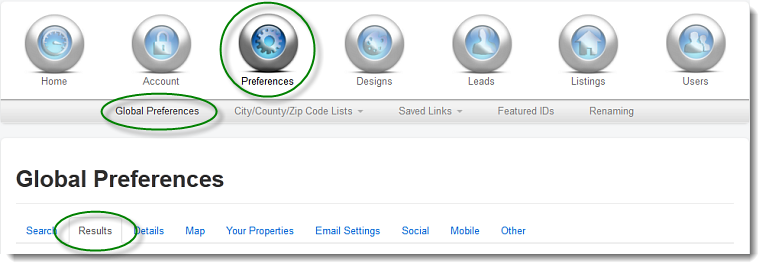
Your options here include:
Property Photo - Default is Yes, Use thumbnail images if available from your MLS.
- This uses smaller thumbnail images on results pages and widgets to speed up page load.
- Selecting 'No' will use the full size images provided by your MLS, instead of the thumbnails. This is best if you notice that images on your site appear distorted or stretched.
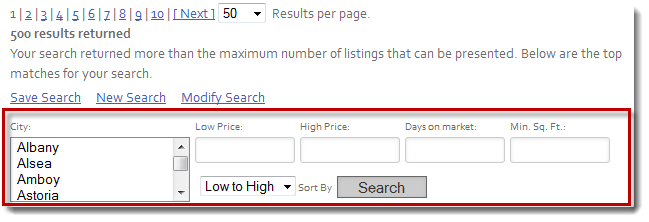
Refinement Search - Default is "Only When Maximum Results Exceeded".
- The refinement search is a limited set of search options to narrow the existing results.
- This may be set to never display, or it can be set to always show.
Virtual Tours & Open Houses - Default is "All Virtual Tours and All Open Houses".
- This turns on the ability to show some or all open houses and virtual tours.
- You can choose to have just those for your agent's or office's shown, or none.
Featured Properties - Default is Yes.
- This displays your featured and/or supplemental listings at the top of IDX search results.
- Selecting 'No' on Featured will mix your listings within the rest of the results.
- Selecting 'No' on Supplemental will completely remove your Supplemental listings from your site.
Results Setting - Default is 50 properties per page and 200 character limit on remarks display.
- This determines how many properties to display per search results page.
- You can also set the number of characters to display in each property's public remarks.
Once you've chosen all of your preferences, click Save Changes.
Considerations
- What if my featured property doesn't show up at the top of search results? - Property listings are pulled per the search criteria before the Featured Listings are sorted to the top. This means that if any of your Featured Listings aren't pulled in the first 500 results, they will not display at the top of the list.
- Where is my Polygon search? - On Platinum Only accounts a polygon refinement is available on the map above the results. This polygon refinement is tied to the Refinement Search and will only display if this option is enabled.
Global Preferences - Details
To customize the default settings for your IDX property details pages, click the Preferences button in the main menu, Global Preferences in the submenu, and select the Details tab.
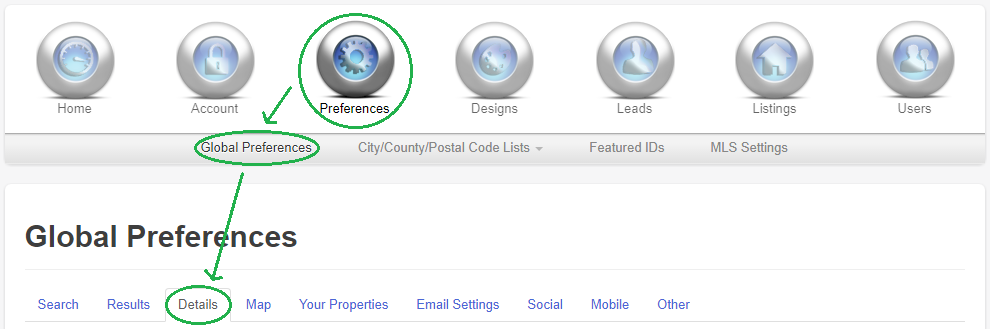
Here, you have the following options:
- Show Empty Detail Data - Default is No
- An MLS may provide fields not commonly used by listing agents. Fields with no values associated with them can clutter your property details page. If you would prefer to display any field that has "0" or null value, you can show these "empty" fields by switching this preference to Yes.
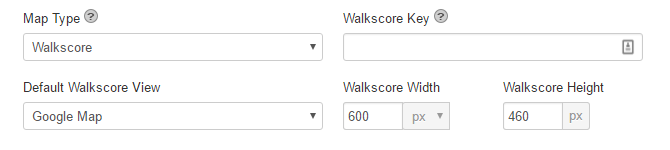
- Map Property Type - Here you can choose which map provider you would like to use on the property Details page.
- Default Walkscore View - Default is Google Map
- Here you may select how the Walkscore map displays upon load.
- Walkscore Sizes - You may select a pixel width and height, or drop down the px to choose a responsive % of the full width.
For maps like Walkscore you can choose to use the paid, ad-free version that we provide. If you have a Walkscore account you can add your custom publisher key to track the map usage.
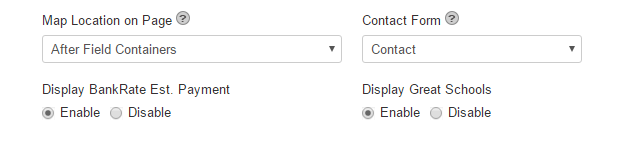
- Map Property Location - This drop-down selects where on the Details page the Map should appear in relation to the other page content.
- "After Field Containers" will display the map below all your property Details fields and above any contact forms or the MLS disclaimer text.
- "Before Field Containers" will display the map below the property Description and above the Details fields.
- Details Page Contact Form - Here you can choose which type of contact form you would like to display at the bottom of your property details page.
- Bankrate tool - This radio button enables or disables the estimated payment tool to be displayed on the details pages. This tool pulls listing information and uses Bankrate.com to approximate a monthly payment for the detailed property.
- GreatSchools - Here you are provided the option to display the school information.
When you are done customizing your settings, click Save Changes at the bottom of the screen.
Global Preferences - Map
To customize the default settings for your IDX map search, click the Preferences button in the main menu, Global Preferences in the submenu, and the Map Search tab.
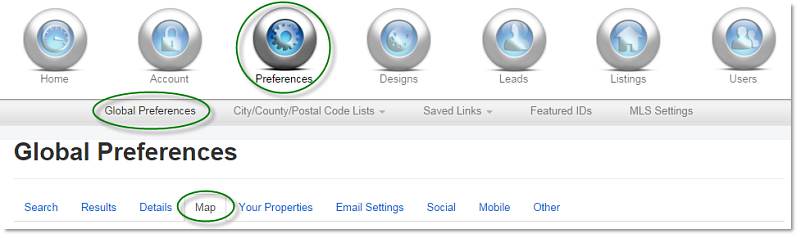
Here, you have the following options:
- All Results Page Maps - Choose whether you want to display a map on your search Results pages. The map will display directly above the search results and show listings that match the search.
- Display Map On - Choose which types of Results pages will display the map. For instance, you could have a map display only on your standard Results page and not on your Featured, Supplemental, or Sold/Pending properties pages.
- Default Map Type - Choose the graphical style for the map display: Roadmap is default but you can also choose Hybrid or Satellite.
- Pin Type - Choose whether to display properties on the map as a pin or the price of the property.
- Refresh Map - Choose how you want your Map Search page to refresh, either Automatically or Manually. If you choose Automatically then each time the map is moved or zoomed the markers will fully refresh. If you choose Manually then each time the map is moved or zoomed a button will appear for the user to refresh the map markers manually.
NOTE: The map will not display on results pages when the mobile wrapper option is turned on.
Global Latitude & Longitude
The global latitude and longitude setting is similar to your latitude and longitude setting in the Map Search page preferences, except that it governs the center point for all maps within your Control Panel as well. For example, the Saved Link Polygon tool.
If the Latitude and Longitude boxes are empty here, you can add the coordinates by looking up a street address. Press the "Look Up New Values" button and enter a street address and postal code, no city or state are necessary.
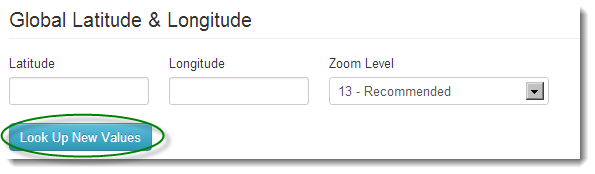
You can also set the global default zoom level here as well.
Pin Clustering in Platinum
In IDX Broker Platinum, you can enable Pin Clustering for the Desktop IDX pages, the Mobile IDX pages or both. This allows for more than 50 property listings per map.
After you have chosen your settings, click Save Changes at the bottom of the screen.
Global Preferences - Your Properties
To customize the default settings for your Featured listings (your own or those of your office if you have an Office level account), click the Preferences button in the main menu, Global Preferences in the submenu, and the Your Properties tab.
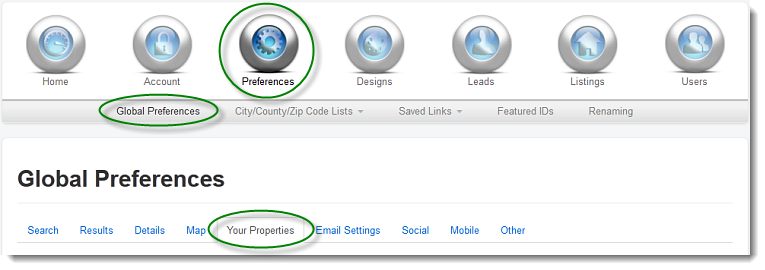
Here, you have the following options:
Featured Properties
Your Featured Properties page will display active listings associated with your agent ID (for a single agent account) or office ID (for an office account).
- Show Property Photo - Choose to display the primary listing photo for all listings on your Featured Properties page.
- Use Thumbnails If Available - If your MLS provides separate thumbnail images in addition to larger images for all listings you can choose to display the thumbnail version on your Featured Properties page. Displaying thumbnail images will speed up page load times.
- Show Refinement Search - A refinement search form is a small search form that allows site visitors to narrow down the current listing results. You can turn the display of the refinement search on or off using this preference. The Polygon map search available in Platinum is also a refinement option that can be enabled or disabled here.
- Show Supplemental Listings - Choose to display any Supplemental Listings you have added to your account along with your MLS listings.
- Number of Properties Per Page - Decide how many listings to display on each results page.
- Sort Properties By - You can sort your Featured Properties by price only, or property type and then price.
- Featured Open House Sorting - Decide how you would like your listings with open houses sorted on your Featured Open House page. You can sort by price or date.
Sold/Pending Properties
Your Sold/Pending Properties page will display all sold or pending listings associated with your agent ID (for a single agent account) or office ID (for an office account).
- Show Property Photo - Choose to display the primary listing photo for all listings on your Sold/Pending Properties page.
- Use Thumbnails If Available - If your MLS provides separate thumbnail images, in addition to larger images for all listings, you can choose to display the thumbnail version on your Featured Properties page. Displaying thumbnail images will speed up page load times.
- Show Refinement Search - A refinement search is a small search form that lets site visitors narrow down the current listing results. You can turn the display of the refinement search on or off using this preference.
- Show Supplemental Listings - Choose to display any sold or pending Supplemental Listings you have added to your account along with your MLS listings.
- Number of Properties Per Page - Decide how many listings to display on each results page.
- Sort Properties By - You can sort your Sold/Pending Properties by price only, or property type and then price.
Supplemental Properties
Your Supplemental Properties page will display all supplemental (non-MLS) listings you have manually added to your IDX account.
- Show Property Photo - Choose to display the primary listing photo for all listings on your Supplemental Properties page.
- Use Thumbnails If Available - If your MLS provides separate thumbnail images, in addition to larger images for all listings, you can choose to display the thumbnail version on your Featured Properties page. Displaying thumbnail images will speed up page load times.
- Show Refinement Search - A refinement search form is a small search form that lets site visitors narrow down the current listing results set. You can turn the display of the refinement search on or off using this preference.
- Number of Properties Per Page - Decide how many listings to display on each page of results.
- Sort Properties By - You can sort your Supplemental Properties by price only, or property type and then price.
When you have finished choosing your settings, click Save Changes at the bottom of the screen.
Global Preferences - Email
To customize the default settings for Email Updates and set default recipients for specific types of notifications, click the Preferences button in the main menu, Global Preferences in the submenu, and the Email Settings tab.
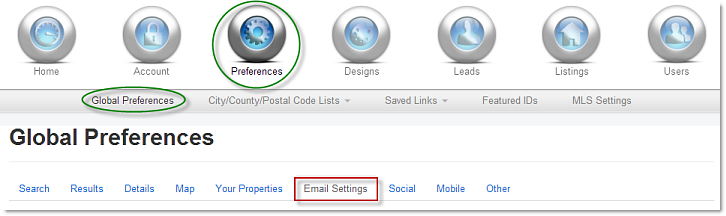
Here, you have the following options to customize the default settings for Email Updates sent out to your leads:
Property Update Settings
- Reply Address - Enter an email address that you would like to display in the "Reply-to" field in the email updates that are sent out to your leads.
- Property Update Subject Line - In IDX Broker Platinum, create your own subject line for email updates by switching this toggle to Custom, and entering the text for the subject line into the box provided on the right.
- Carbon Copy Type - You can choose to receive carbon copies of every email update sent out to your leads, or a daily summary of all email updates. The carbon copies will be sent to the email address specified in the Carbon Copy Address box to the right.
- Send Property Updates - Set the frequency that IDX Broker will send out Email Updates to your leads regarding new listings, Daily or Weekly. We recommend Daily Email Updates for leads (this does not mean they are guaranteed to be emailed everyday, but that they will be emailed on the same day that a new listing matches their Saved Search, or a change is made on any Saved Property).
- Sample Email Update - If you would like to see a sample of the Email Updates that your leads receive, you can enter an email address into the field and press "Send Now".
After you are finished customizing your options, don't forget to click Save Changes at the bottom of the screen.
Email Signature Settings for Platinum
IDX Broker Platinum offers the feature to customize the signature on emails sent out on your behalf. There is an interface that accommodates this customization. By default this is a "What You See Is What You Get" interface. Type in your signature text or use the buttons to add links to images or websites. If you would like to put in raw HTML code, simply select the button labeled, "Turn WYSIWYG Off".
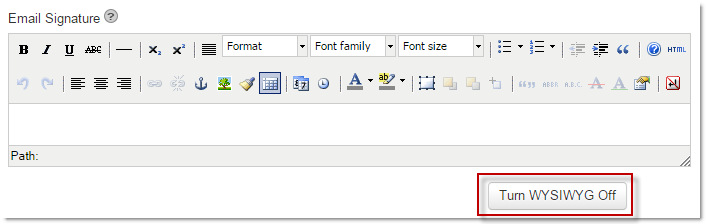
Recipient Settings for Multi-User Accounts
In IDX Broker Platinum and all multi-user accounts, you may also set additional recipient options. These fields are for setting default recipients for each type of contact page that your site visitors may use to contact you.
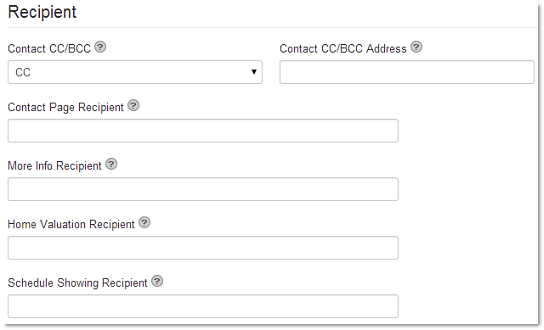
Contact CC/BCC
Additional email addresses can receive communications from leads on your website. Those addresses can be entered under Recipient. You can choose to have them be set as a "Carbon Copy" or a "Blind Carbon Copy" recipient. Each of these input boxes will only allow a single email address.
- Contact Page - This is the generic contact page for your account, located in your IDX Page Links.
- More Info - This is the contact form site visitors will fill out when they click on a More Info link from any property detail page.
- Home Valuation - This is a contact page that sellers can fill out and submit to you if they are interested in working with you to sell a property, also available in your IDX Page Links.
- Schedule Showing - This is the contact form site visitors will fill out when they click on a Schedule Showing link from any property detail page.
If you would like the contents of any of these contact forms sent to a specific email address, simply enter the email addresses into the appropriate fields, and click Save Changes.
Global Preferences - Social
To customize the default settings for the ways your site visitors are able to share properties, click the Preferences button in the main menu and Global Preferences in the submenu, then Social in the list of tabs.
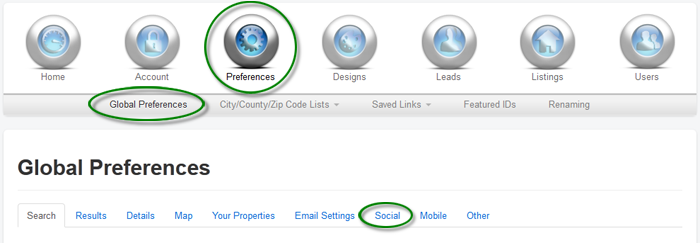
Here, you have the following options:
- Share Property Method - You have two options for providing your site visitors with the ability to share property details. They can use ShareThis, a social media sharing tool to post content to Facebook, Twitter, and many other social media sites. A standard "mailto" email link is the second option available to email a property details link to any recipient(s).
- Widget Popup On - If you have ShareThis enabled, choose to have the ShareThis widget display when your site visitors click on the Share Property link, or when they simply place their mouse over the link.
- ShareThis Publisher Key - If you are using ShareThis, you can register with ShareThis and obtain a unique publisher key to use with your IDX Broker account to track the specific sharing stats related to the use of this tool within your account. If you have obtained a publisher key, enter it into this field in your IDX control panel.
- Note: Your publisher key is available via the Get Widget feature on ShareThis.com and is not provided directly by IDX, Inc.
Once you have finished customizing your options here, click Save Changes at the bottom of the screen.
Global Preferences - Other
To customize the default settings for some miscellaneous utilities and features in IDX Broker, click the Preferences button in the main menu, Global Preferences in the submenu, and the Other tab from this screen.
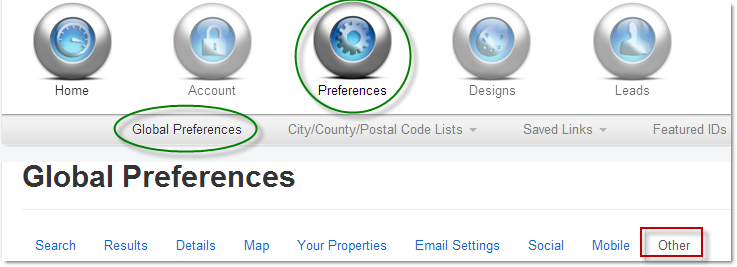
Here, you have the following options:
Logo Information
Adding a custom logo here will make it display in place of the MLS logo for your own listings on search results pages.
You can specify the URL to an image hosted anywhere on the Internet. Or if you prefer to upload a logo from your computer you can select "Upload a photo".
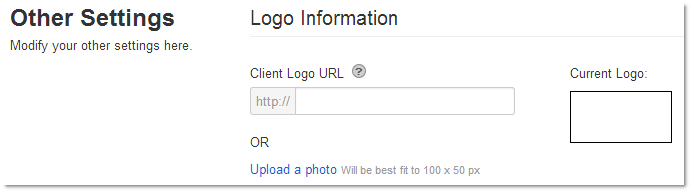
Note: Logos will look and fit best if they are 100 pixels wide and 50 pixels tall.
You can also upload a custom placeholder image for listings that do not have any photos provided by the MLS. Either specify a link URL to your placeholder photo, or upload one from your computer. In either case, the image will fit best at 400 pixels wide by 300 tall.
Lead Management Settings
Here you can define how long a lead is still considered "new", in terms of days. Also, you can choose to have your Lead management screen (Leads -> Manage) show all your leads or only the "new" ones.
Roster Page
If you have an Office Account, you can choose to display an agent search box at the top of your Roster Page. This allows your site visitors to easily locate a specific agent they would like to contact. This is especially handy for Offices of 50 agents or more.
Sitemap
Choose which city and county list you would like to display on your IDX Sitemap (available in your Page Links). You can also choose to display the full state name along with the cities and counties, or the state abbreviation.
Search By City
Choose which city list you would like to display on your Search By City IDX page (available in your Page Links). You can also select which price increment our system will use to break out your Search By City links.
Email Notification
Use the three preferences here to choose which system notifications you would like to receive via email.
Timezone Settings
Choose your time zone. All timestamps for leads and notifications will be displayed in the time zone of your choice.
Global Design Settings
Here you can customize the default preferences for your IDX page design.
- Design Width - Define the width of the main content area where the IDX tools will go on your website. This Design Width makes sure the layout of your IDX tools fits within your website content area. This should be pre-defined for you based on your website when you first signed up with IDX Broker, so you will only need to update this if your website design changes.
- Widget Link/Form Target - You can set a link target for all of your IDX widgets and forms.
Mortgage Calculator Settings
- Default Price - The mortgage calculator will be pre-filled with this price by default. You may want to set this to the average price of a property your customers would buy.
- Down Payment - The mortgage calculator will be pre-filled with this down payment amount by default. Fill in an appropriate down payment amount here.
- Down Payment Type - Choose whether you would like to calculate the down payment in dollars or a percentage of the price of the property.
- Interest Rate - Choose the default interest rate percentage.
- Years - Specify the length of the mortgage in years.
- Show Amortization - Set the mortgage calculator to show amortization by setting this option to Yes.
- Display Bank Rate Tool - This enables or disables the showing of the Bank Rate settings on the mortgage calculator page.
When you are done customizing all of your options, click Save Changes at the bottom of the screen.
Comments
0 comments
Please sign in to leave a comment.